
Hub documentation
Hugging Face MCP Server
Hugging Face MCP Server
The Hugging Face MCP (Model Context Protocol) Server connects your MCP‑compatible AI assistant (for example Codex, Cursor, VS Code extensions, Zed, ChatGPT or Claude Desktop) directly to the Hugging Face Hub. Once connected, your assistant can search and explore Hub resources and use community tools, all from within your editor, chat or CLI.
What you can do
- Search and explore Hub resources: models, datasets, Spaces, papers and more.
- Search the Hugging Face documentation with natural language queries.
- Schedule and run Jobs and use sandboxes
- Run community tools via MCP‑compatible Gradio apps hosted on Spaces.
- Bring results back into your assistant with metadata, links, and context.
Get started
Open your MCP settings while logged in.
Pick your client: select your MCP‑compatible client (for example Cursor, VS Code, Zed, Claude Desktop). The page shows client‑specific instructions and a ready‑to‑copy configuration snippet.
Paste and restart: copy the snippet into your client’s MCP configuration, save, and restart/reload the client. You should see “Hugging Face” (or similar) listed as a connected MCP server in your client.
The settings page generates the exact configuration your client expects. Use it rather than writing config by hand.

Using the server
After connecting, ask your assistant to use the Hugging Face tools. Example prompts:
- “Search Hugging Face models for Qwen 3.6 Quantizations.”
- “Find a Space that can transcribe audio files.”
- “Show datasets about weather time‑series.”
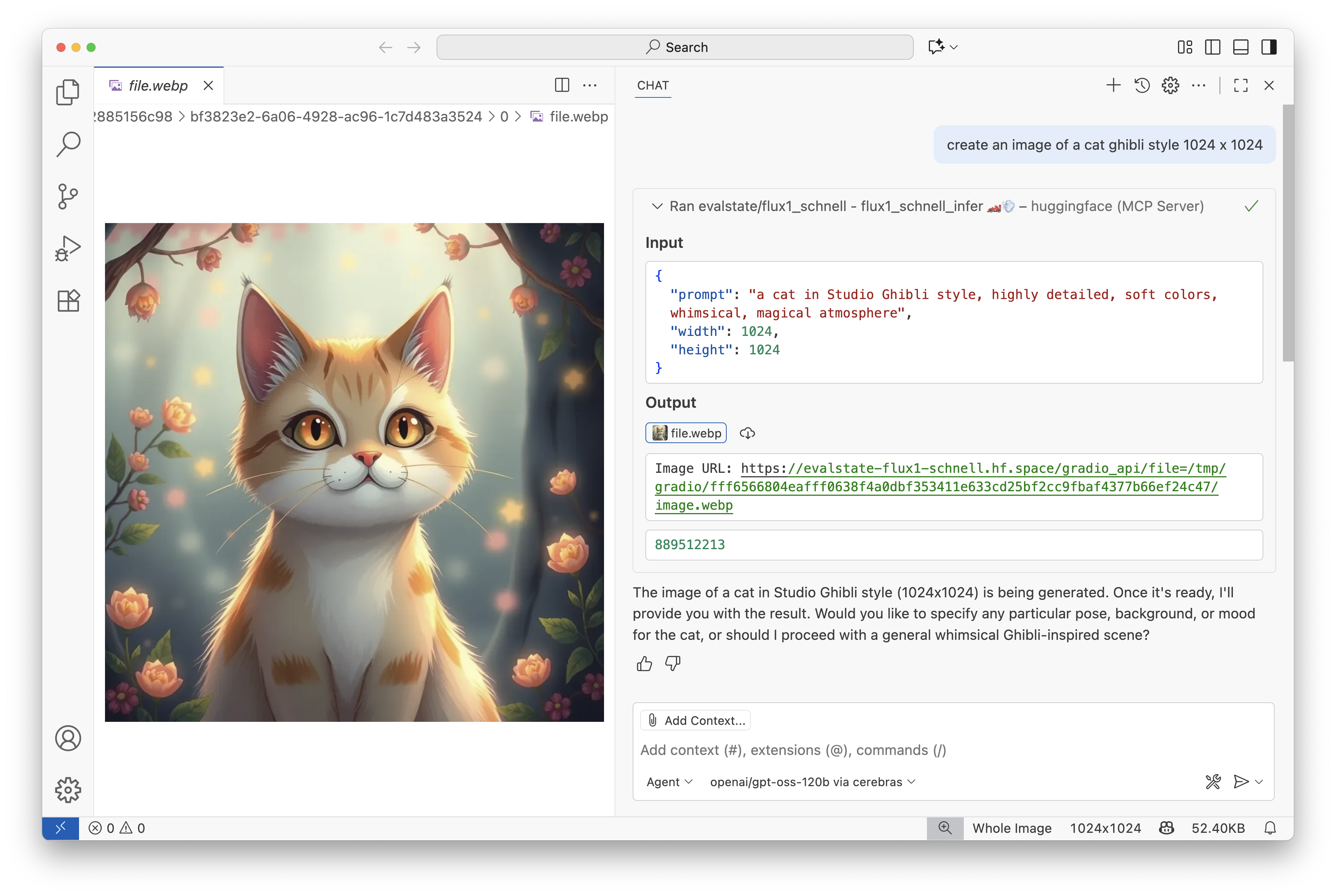
- “Create a 1024 x 1024 image of a cat ghibli style.”
- “How do I use LoRA adapters with PEFT?” (uses Documentation Semantic Search)
- “Find papers about vision-language models.”
Your assistant will navigate the Hub using tools exposed by the MCP Server (including Spaces you have selected, as shown in the next section) and return results (titles, owners, downloads, links, and so on). You can then open the resource on the Hub or continue iterating in the same chat.
Built-in Tools
Most Hub tasks can be efficiently completed with the built in hf_fs tool. It lets your assistant efficiently navigate the Hub, including semantic searches of Documents and Spaces.
You can configure extra tools from your MCP settings page.
| Tool | Description |
|---|---|
| Contribute Repos | Create and write files to those created repositories |
| Sandboxes | Create and use Sandboxes: includes Sandbox file management |
| Run and Manage Jobs | Run, monitor, and schedule jobs on Hugging Face infrastructure. |
Experimental tools are added from time-to-time. Try them and feed back whether they improve your improve your experience here
Add community tools (Spaces)
You can extend your setup with MCP‑compatible Gradio Spaces built by the community:
- Explore Spaces with MCP support here.
- Add the relevant Space in your MCP settings on Hugging Face here.
Gradio MCP apps expose their functions as tools (with arguments and descriptions) so your assistant can call them directly. Please restart or refresh your client so it picks up new tools you add.
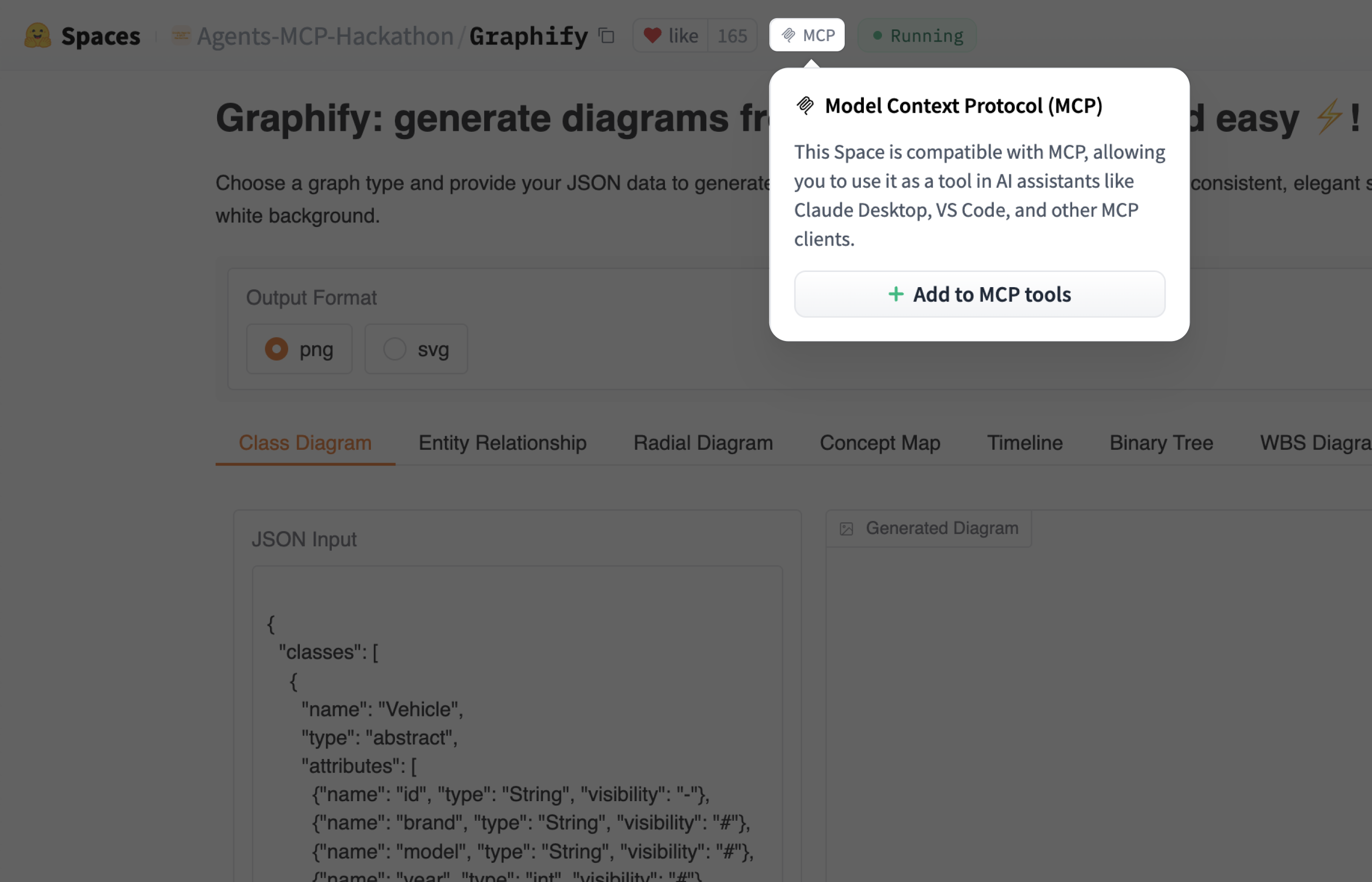
Check out our dedicated guide for Spaces as MCP servers here.
Spaces options
Your MCP settings provide several options to customize how Spaces work:
| Option | Description |
|---|---|
| Dynamic Spaces | Dynamically call MCP Spaces at runtime. When enabled, your assistant can discover and use MCP-compatible Spaces on-the-fly without adding them manually. |
| Remove Embedded Images | Remove embedded images generated by Gradio Spaces. Useful if your MCP client has limited image support or you want text-only responses. |
Learn more
- Settings and client setup: https://huggingface.co/settings/mcp
- Changelog announcement: https://huggingface.co/changelog/hf-mcp-server
- Hugging Face MCP Server: https://huggingface.co/mcp
- Build your own MCP Server with Gradio Spaces: https://www.gradio.app/guides/building-mcp-server-with-gradio